




Try the app. Understand your choice.
Ontdek hoe je kijkt, zoekt en favorieten bewaart. Kies een onderwerp en bekijk de bediening stap voor stap.
← Back to Xsarius Sniper 2 Bluetooth 4K UHD Linux OTT Mediastreamer YOU ARE VIEWINGPremiumTV+ · LinuxChoose another app +






01Home screen−
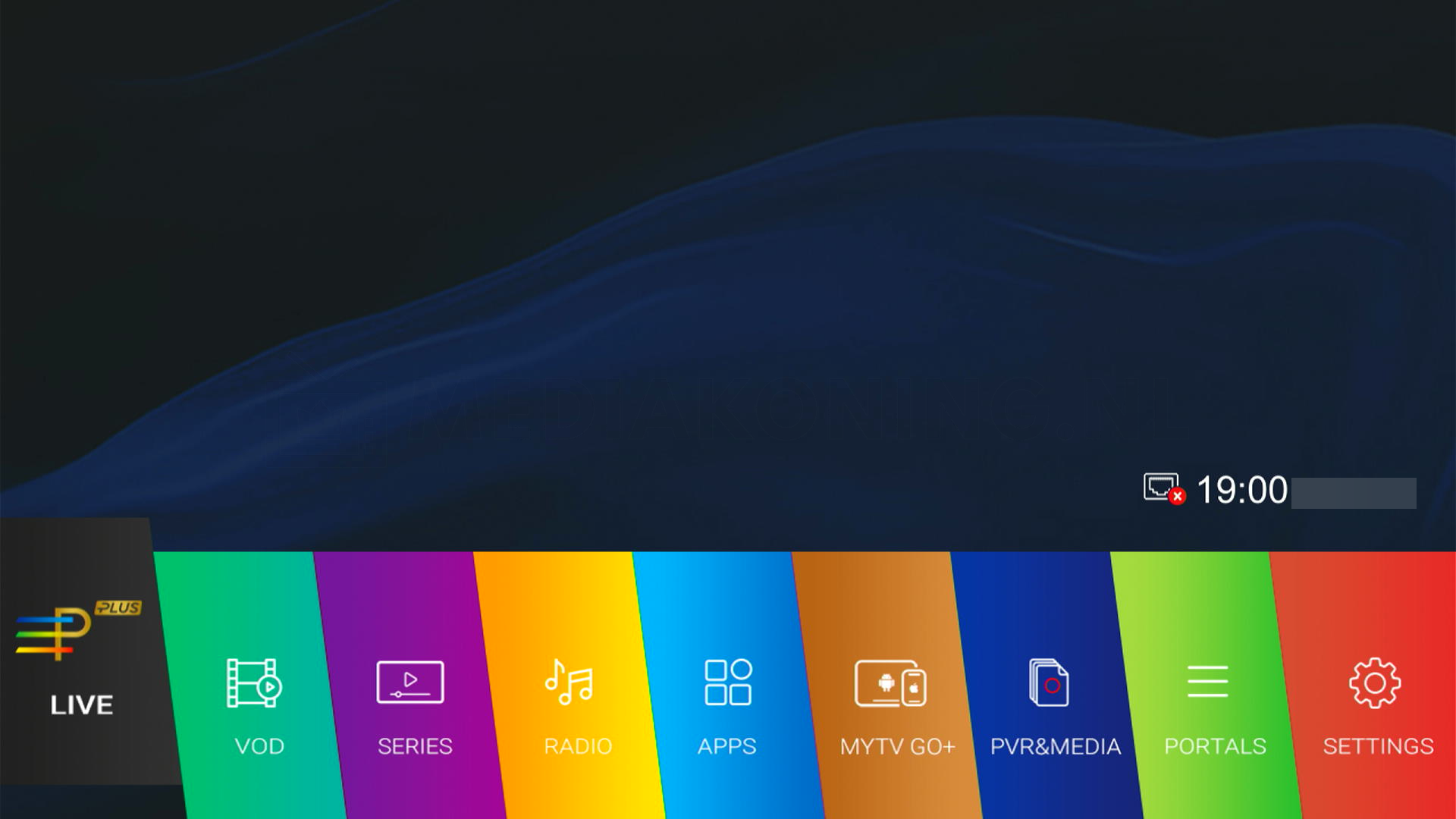
Get to know the main sections of the TV app.
- Open the app on the receiver.
- Use the arrow keys to go to Live TV, the guide or another visible section.
- Confirm with OK; use Back to return to the previous screen.
02Set up Stalker / portal+
Connect the app to your own TV service's portal.
- Open connections or content sources in the app menu.
- Choose a portal connection and enter the address and details required by your service.
- Save the connection and check that the channel list loads. Do not share your login details.
03Set up Xtream+
An Xtream connection uses a server address, username and password.
- Open connections and choose Xtream if that connection type is shown.
- Copy the server address, username and password exactly from your own service.
- Save the details and open the connection. If an error occurs, check the details and internet connection first.
04M3U playlist+
Use your own playlist; an XMLTV address can supply additional guide information.
- Open the playlists or content sources section.
- Add the M3U URL or a supported local file. Enter an XMLTV EPG address only if supported by the app and your service.
- Save and refresh the list. A playlist contains only content made available by your service.
05Add using an FC code+
Add a configuration using an FC code if supported by your service and app.
- Open the FC code entry feature.
- Enter the code from your own service and check the displayed configuration.
- Confirm and check that the connection works. A code belongs to a specific configuration or service.
06Add using the web+
Enter a source more easily using the displayed web address or a QR code.
- Open the app's option to add a source using the web or a phone.
- Use only the address or QR code displayed on your own receiver.
- Follow the pairing instructions, then check the new source on the receiver.
07Live TV and channel list+
Browse channels and groups without leaving the TV app.
- Open Live TV and press OK to view the channel list.
- Use the arrows to move between available groups and channels.
- Choose a channel with OK. Use Back to close the list.
08TV guide / EPG+
View programmes by channel, time and day in the electronic TV guide.
- Open the TV guide using GUIDE/EPG or the app menu.
- Select a channel and browse to a time or another day.
- Open programme information with OK. Your service must supply the guide data.
09Catch-up+
Start an earlier programme when your service offers catch-up for that channel.
- Open the guide and go to a programme broadcast earlier.
- Check for a catch-up icon or playback option.
- Choose Play. Not every programme or channel has catch-up rights or an archive.
10Recording / PVR+
Record a programme using suitable storage and a service that allows recording.
- Connect suitable USB storage or select a storage location supported by this app.
- Open recording from Live TV or the guide and check the duration and storage location.
- Start recording and check the recordings list. Watching and recording together may require extra service connections.
11Favourites and groups+
Reach the channels you use often more quickly.
- Open the channel list and select a channel.
- Open the favourites action using the displayed menu or indicated colour key.
- Add the channel to your favourites list, then open the list to check it.
12Sort channels+
Choose an order that suits the way you search.
- Open the channel list, then the options or sorting menu.
- Choose an available order, such as source order or alphabetical order.
- Confirm and check the list. Some sources control the order themselves.
13Search+
Find a channel or available title more quickly.
- Open search in the current section or main menu.
- Enter part of the name. Use voice or phone input only if supported by your model and version.
- Open a result with OK and adjust the section or search term if needed.
14Lock / child lock+
Restrict access using the app's parental lock or PIN options.
- Open security or parental settings.
- Set your own PIN and choose the profiles, channels or sections to lock.
- Test the lock and keep your PIN safe. Support and recovery options differ by app.
15Audio, picture and subtitles+
Adjust playback using options offered by the current stream.
- While watching, open audio, subtitle or viewing options.
- Choose an available audio track, subtitle or aspect ratio.
- Confirm and check the result. An app cannot add a missing language track or subtitle to a stream.
16MyTV GO++
Explore the companion mobile app without confusing the Android and Linux versions.
- Check which mobile app and pairing method your receiver specifies.
- Install official MYTVOnline+ or MyTV GO+ only if it belongs to your TV app.
- Follow official pairing instructions. Mobile access and additional connections depend on the app and your service.