




Try the app. Understand your choice.
Ontdek hoe je kijkt, zoekt en favorieten bewaart. Kies een onderwerp en bekijk de bediening stap voor stap.
 YOU ARE VIEWINGMYTVOnline 4 · AndroidChoose another app +






01Home screen and main menu−
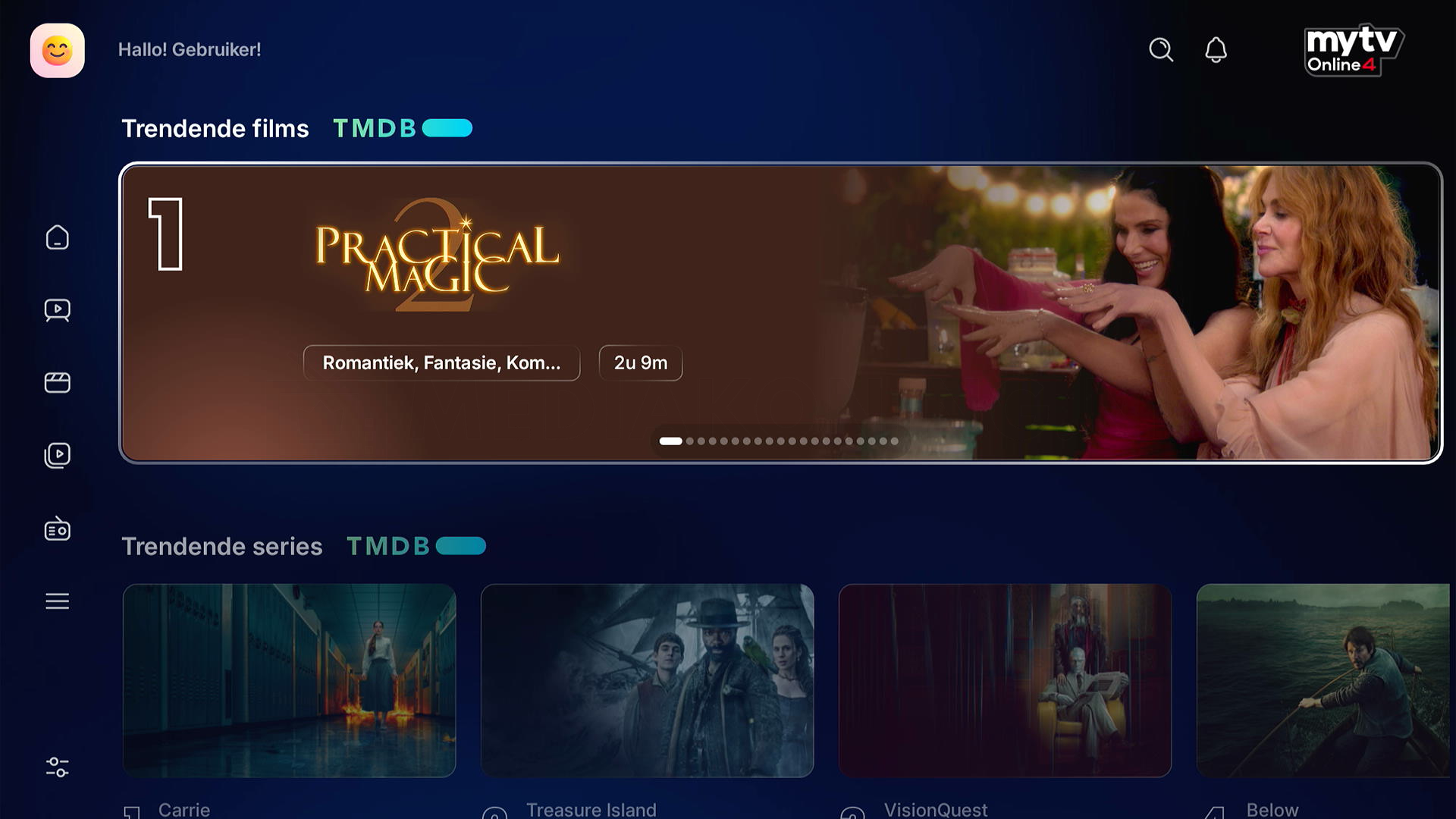
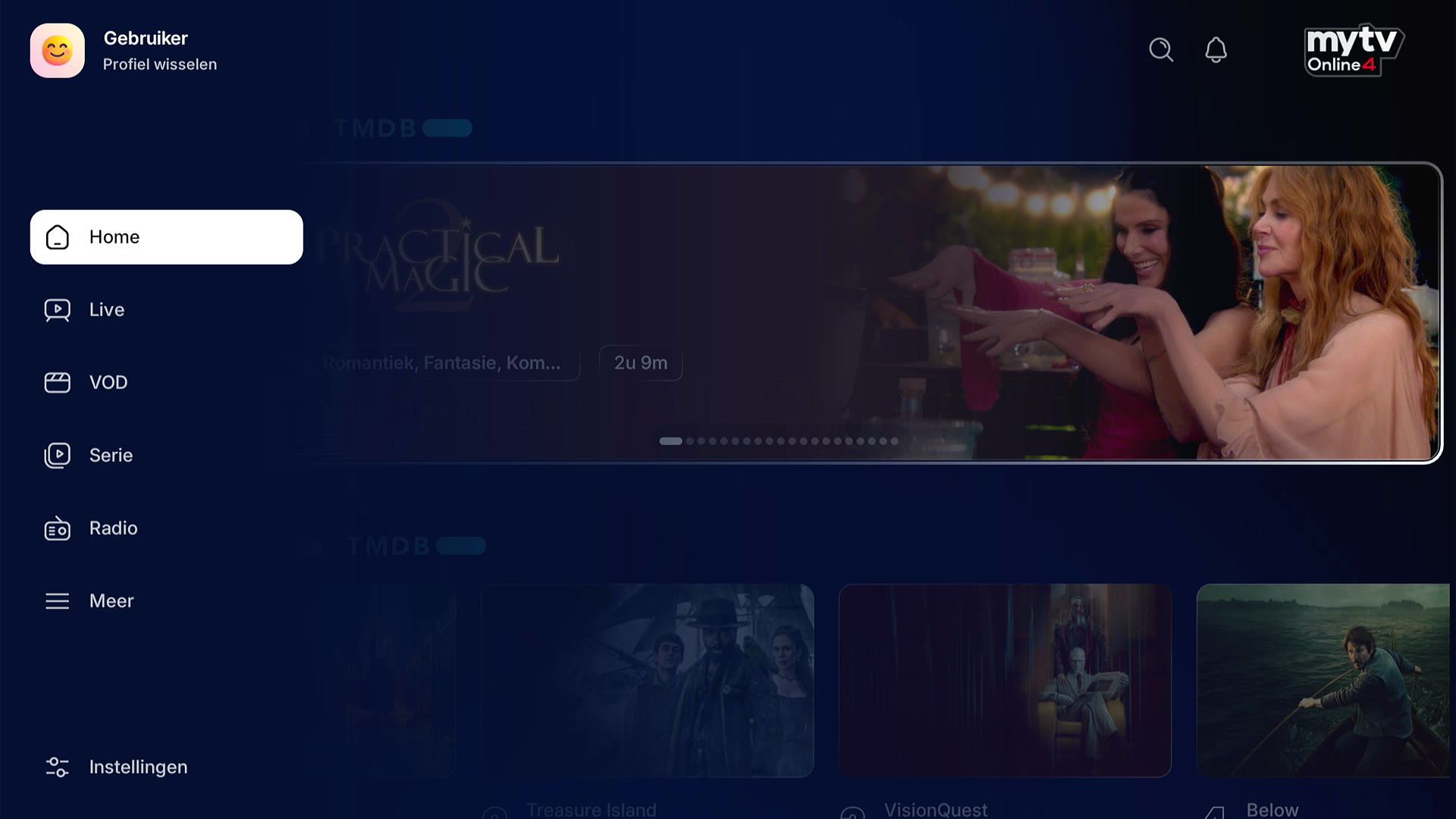

Get to know the main sections of the TV app.
- Open the app on the receiver.
- Use the arrow keys to go to Live TV, the guide or another visible section.
- Confirm with OK; use Back to return to the previous screen.
02Moving from MYTVOnline 3 to 4+
Move carefully to MYTVOnline 4 on a supported Formuler model.
- Check official update information for your receiver and make a backup first if supported.
- Install the offered version and complete the transfer or initial setup on the device.
- Afterwards, check connections, favourites and storage settings. This does not automatically give an older receiver MYTVOnline 4 support.
03Profiles and avatars+
Use your own profile, name and avatar on versions that support profiles.
- Open the profile menu in MYTVOnline 4.
- Create or edit a profile and choose a name and avatar.
- Open the profile and check its preferences and access.
04Adding content sources+
Manage the connections and lists used by this app.
- Open content management, the content manager or content sources in the app menu.
- Choose the source you want to add, update, synchronise or remove.
- Check the change before confirming, then open the source you want.
05Portal and connection+
Connect the app to your own TV service's portal.
- Open connections or content sources in the app menu.
- Choose a portal connection and enter the address and details required by your service.
- Save the connection and check that the channel list loads. Do not share your login details.
06M3U and XMLTV EPG+
Use your own playlist; an XMLTV address can supply additional guide information.
- Open the playlists or content sources section.
- Add the M3U URL or a supported local file. Enter an XMLTV EPG address only if supported by the app and your service.
- Save and refresh the list. A playlist contains only content made available by your service.
07Add using a phone or QR code+
Enter a source more easily using the displayed web address or a QR code.
- Open the app's option to add a source using the web or a phone.
- Use only the address or QR code displayed on your own receiver.
- Follow the pairing instructions, then check the new source on the receiver.
08Live TV and channel overview+
Browse channels and groups without leaving the TV app.
- Open Live TV and press OK to view the channel list.
- Use the arrows to move between available groups and channels.
- Choose a channel with OK. Use Back to close the list.
09TV guide: grid and daily overview+
View programmes by channel, time and day in the electronic TV guide.
- Open the TV guide using GUIDE/EPG or the app menu.
- Select a channel and browse to a time or another day.
- Open programme information with OK. Your service must supply the guide data.
10Catch-up and watchlist from the guide+
Start an earlier programme when your service offers catch-up for that channel.
- Open the guide and go to a programme broadcast earlier.
- Check for a catch-up icon or playback option.
- Choose Play. Not every programme or channel has catch-up rights or an archive.
11Mark channels as favourites+
Reach the channels you use often more quickly.
- Open the channel list and select a channel.
- Open the favourites action using the displayed menu or indicated colour key.
- Add the channel to your favourites list, then open the list to check it.
12Manage your own favourite groups+
Organise favourite channels in your own lists if your app supports it.
- Open favourites or custom group management.
- Create or select a group and give it a recognisable name.
- Add channels and check the group's contents and order.
13Show, hide and refresh groups+
Keep the overview tidy by managing categories.
- Open group management from the channel list or content settings.
- Choose a group and use the displayed show, hide, refresh or edit action.
- Return to the list and check the result. Hiding does not remove the source itself.
14Sorting and list view+
Choose an order that suits the way you search.
- Open the channel list, then the options or sorting menu.
- Choose an available order, such as source order or alphabetical order.
- Confirm and check the list. Some sources control the order themselves.
15Recently watched channels+
Return to channels you watched recently.
- Open recently watched channels or channel history.
- Select a previously watched channel.
- Confirm with OK. Saved history may vary by profile or app version.
16Watchlist+
Save an interesting programme or title to find it later.
- Open information for a programme or title.
- Choose the watchlist action if available.
- Open your watchlist in the app menu to find or remove the item.
17Recording and recording management+
Record a programme using suitable storage and a service that allows recording.
- Connect suitable USB storage or select a storage location supported by this app.
- Open recording from Live TV or the guide and check the duration and storage location.
- Start recording and check the recordings list. Watching and recording together may require extra service connections.
18Recordings, reminders and scheduling+
Schedule a recording or reminder for a programme in the guide.
- Open the guide and select the future programme you want.
- Choose recording, timer or reminder from the available actions.
- Check the channel, date, times and any repeat settings in the schedule.
19Timeshift and DVR storage+
Pause Live TV and resume from the temporary buffer.
- Check that suitable timeshift or DVR storage is selected.
- Open a channel and press Pause when timeshift is available for that stream.
- Resume with Play and use the available action to return to live. The buffer is not a permanently saved recording.
20Picture-in-Picture (PiP)+
Watch a second channel in a small window on supported receivers.
- Start a channel and open the app's PiP option.
- Choose a second channel and use the available action to swap the main and small pictures.
- Close PiP from its window menu. Support depends on the model, stream format and permitted connection count.
21Films / VOD+
Browse films made available by your own service.
- Open Films or VOD in the app menu.
- Choose a category, filter or search term and open a title.
- Read the information and start playback. Available titles and access come from your own service.
22Series+
Find a series and choose the season and episode you want.
- Open Series in the app menu.
- Select a title, then an available season and episode.
- Open the information and choose Play. Not every source provides a separate series section.
23Radio stations+
Use the separate radio list if your source offers one.
- Open Radio from the main menu or channel overview.
- Select an available radio group and station.
- Confirm with OK and adjust volume using the remote.
24Search using text, voice and phone+
Find a channel or available title more quickly.
- Open search in the current section or main menu.
- Enter part of the name. Use voice or phone input only if supported by your model and version.
- Open a result with OK and adjust the section or search term if needed.
25AI recommendations+
Explore recommendations this app version shows for your available content.
- Open recommended content or the search page in MYTVOnline 4.
- View a suggestion and open its information.
- Check that your own source grants access to the title. Recommendations do not add to your subscription.
26Matchday and sport+
Find sporting events through Matchday if available.
- Open Matchday or the app's sports section.
- Choose an available day, competition or match.
- Open the displayed viewing option. Availability depends on your source and supplied event data.
27Choose where the app opens+
Let the app open where it suits your viewing habits.
- Open the home or startup screen setting.
- Choose an available startup action, such as Home or Live TV.
- Close and reopen the app to check the result.
28Personalise the home screen+
Choose which sections appear on the home screen.
- Open the home screen layout options.
- Choose available rows or sections to display and adjust their order.
- Return to the home screen and check the new layout.
29Profile settings+
Manage preferences and security for the active profile.
- Select the correct profile before changing settings.
- Open profile settings and check the available preferences and PIN options.
- Save the change and check whether it applies to this profile or the whole app.
30Menu language+
Change the app's menu language.
- Open the language setting in the app.
- Select a supported language and confirm.
- Check the menus. Audio languages and subtitles are set separately during playback.
31Audio and subtitles+
Adjust playback using options offered by the current stream.
- While watching, open audio, subtitle or viewing options.
- Choose an available audio track, subtitle or aspect ratio.
- Confirm and check the result. An app cannot add a missing language track or subtitle to a stream.
32Sound, aspect ratio and sleep timer+
Adjust playback using options offered by the current stream.
- While watching, open audio, subtitle or viewing options.
- Choose an available audio track, subtitle or aspect ratio.
- Confirm and check the result. An app cannot add a missing language track or subtitle to a stream.
33OSD and playback restrictions+
Adjust on-screen information and playback restrictions.
- Open display or OSD settings.
- Check the available information bars, timings and playback preferences.
- Change the option you want and check the result while watching.
34Buffer, external player and frame rate+
Change technical playback preferences only to address a specific problem.
- Open player settings in the app menu.
- Check the available buffer, frame rate or external player options.
- Change one option at a time, test the same stream and restore the previous value if playback gets worse.
35General app settings+
Review app settings before changing a preference.
- Open Settings in the app menu.
- Select a section and note its current value before changing it.
- Save the change and check the result. Available settings vary by firmware.
36Profile PIN and app security+
Restrict access using the app's parental lock or PIN options.
- Open security or parental settings.
- Set your own PIN and choose the profiles, channels or sections to lock.
- Test the lock and keep your PIN safe. Support and recovery options differ by app.
37Backup and restore+
Save app settings before resetting the device.
- Open Backup and Restore in the app.
- Choose a supported storage location and create a backup; keep account details private.
- Restore only a compatible backup for your app version and check the settings afterwards.
38Notifications+
Read the notifications available in the app.
- Open Notifications in the app menu.
- Select a notification to read it.
- Follow only actions appropriate to your receiver and service, then return to the menu.
39More menu+
Find additional sections through the More menu.
- Open More in MYTVOnline 4.
- Select an available section, such as settings, notifications or information.
- Confirm with OK and use Back to leave the menu.
40MYTVOnline+ for mobile+
Explore the companion mobile app without confusing the Android and Linux versions.
- Check which mobile app and pairing method your receiver specifies.
- Install official MYTVOnline+ or MyTV GO+ only if it belongs to your TV app.
- Follow official pairing instructions. Mobile access and additional connections depend on the app and your service.
41App help, version and terms+
Find your app's version number and information.
- Open Info, About or App Information in the app menu.
- Note the version number when requesting support and read the available help.
- Use the remote to go back; choose Exit only if you want to close the app.